
Repair the photo.
Keep the moment.
Every photo you take, repaired like a pro shot it: same people, same moment, better light.
Your first 5 photos are free.
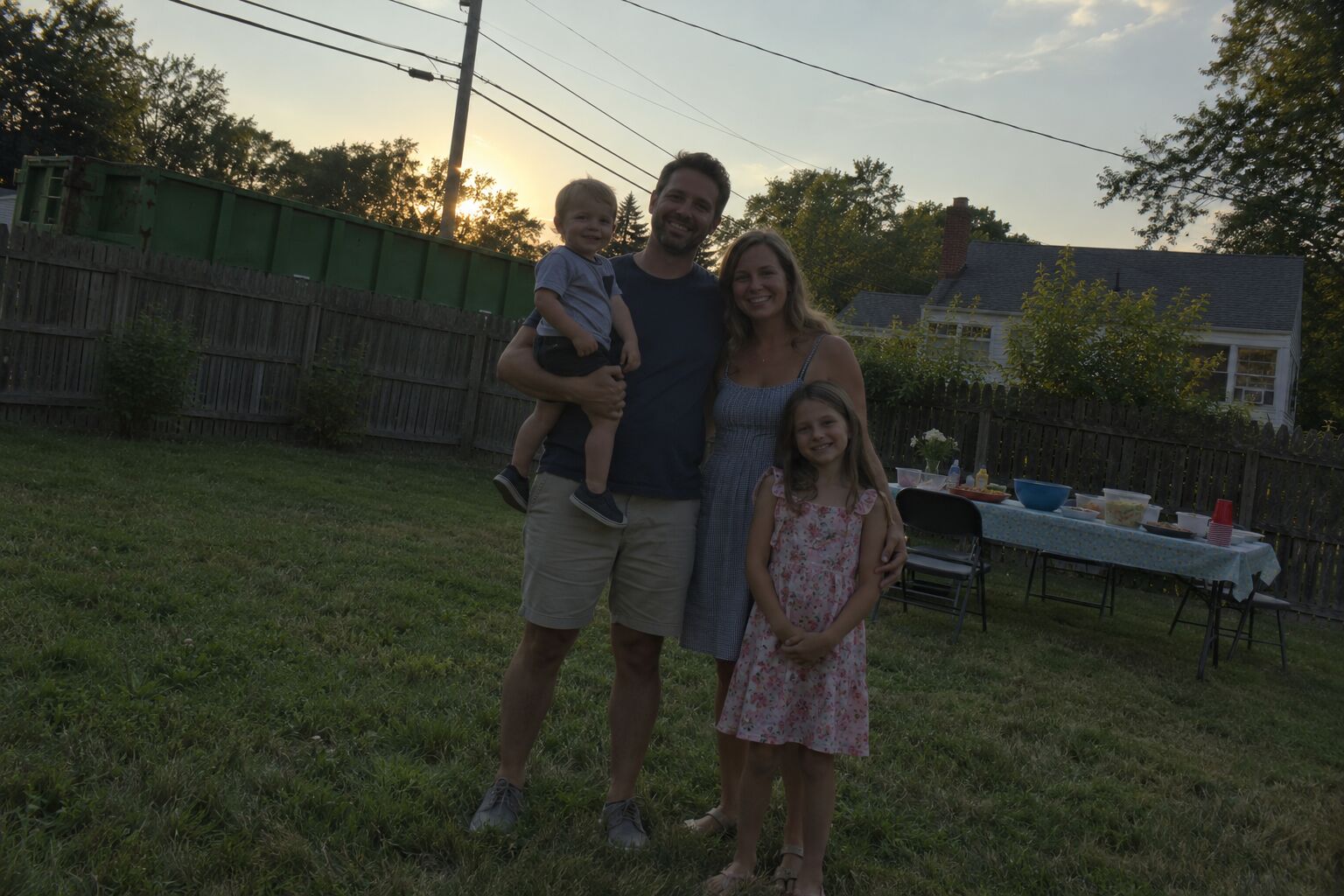
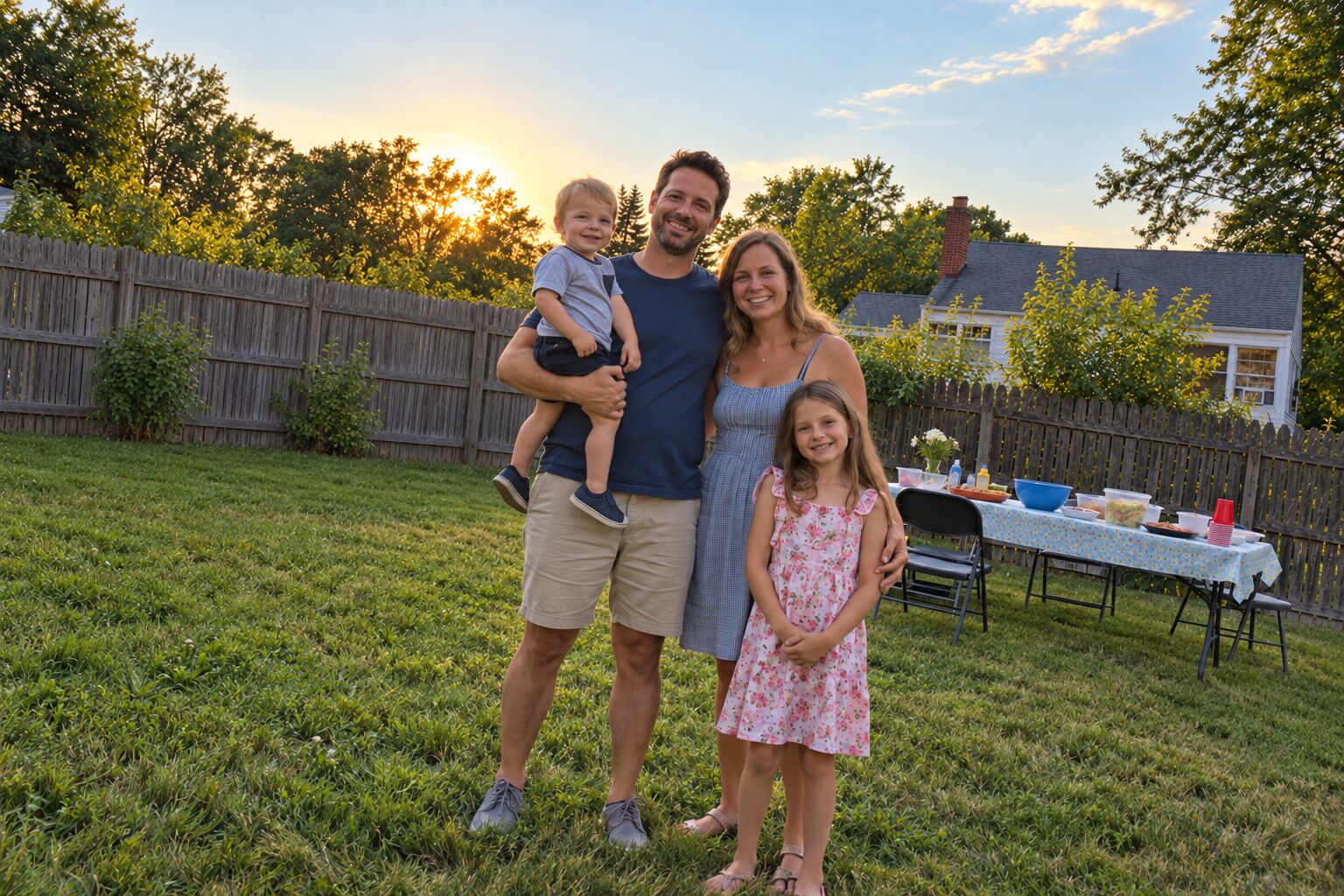
The things a good photographer would have caught.
You took the picture at the right moment. Picture.Repair handles what got in the way of it: the angle, the light, the noise, and whatever was standing behind you.
Framing
Level and composed, as if you had a second to set up.
- Tilted horizons
- Leaning walls and perspective
- Lens distortion
- A tighter, stronger crop
Light and exposure
Faces you can see, skies that keep their color.
- Underexposed and backlit shots
- Blown-out skies and haze
- White balance and color casts
- Shadows, highlights, contrast
Red-eye and noise
The flaws of a small sensor and a harsh flash.
- Red-eye from the flash
- Grain in low light
- Dust spots
- Lens flare
Distractions
Background clutter that was never part of the moment.
- Dumpsters and trash bins
- Power and phone lines
- Cones and sign clutter
- Strangers walking through
The people stay. The moment stays.
Picture.Repair corrects the photograph, not what happened in it. These are rules, checked on every photo before you see it.
- PeopleEveryone who is part of the moment stays in it. Nobody is added, removed or swapped.
- FacesNo smoothing, reshaping or retouching. Skin, hair and features stay as they are.
- ExpressionsThe squint, the half-laugh, the look away. Gaze and poses are left alone.
- The momentWhat was happening still happens. The cake, the toast, the wave all stay.
- The placeNo new skies, no added landmarks, no invented scenery.
- Time and weatherLight is corrected, never relit. A grey afternoon stays a grey afternoon.
Your original is always kept. Undo any repair with Revert in Photos.
When Picture.Repair is unsure whether someone in the background is a stranger, it keeps them. A repaired photo that fails the fidelity check is never delivered.
It runs on its own.
Take pictures the way you already do. New photos start processing as soon as Picture.Repair receives them. One tap applies the finished repairs. You mostly open the app to add credits.
Take photos as usual
Picture.Repair picks up new photos in your library and starts repairing them. There is nothing to press.
Repairs start right away
Once a photo arrives, repairing starts without an overnight wait. One tap on the notification applies them all. iOS asks once per batch to let Picture.Repair edit them.
By hand, right away
Pick any photo, from this morning or ten years ago. It is repaired in about a minute and applied as soon as it is ready.

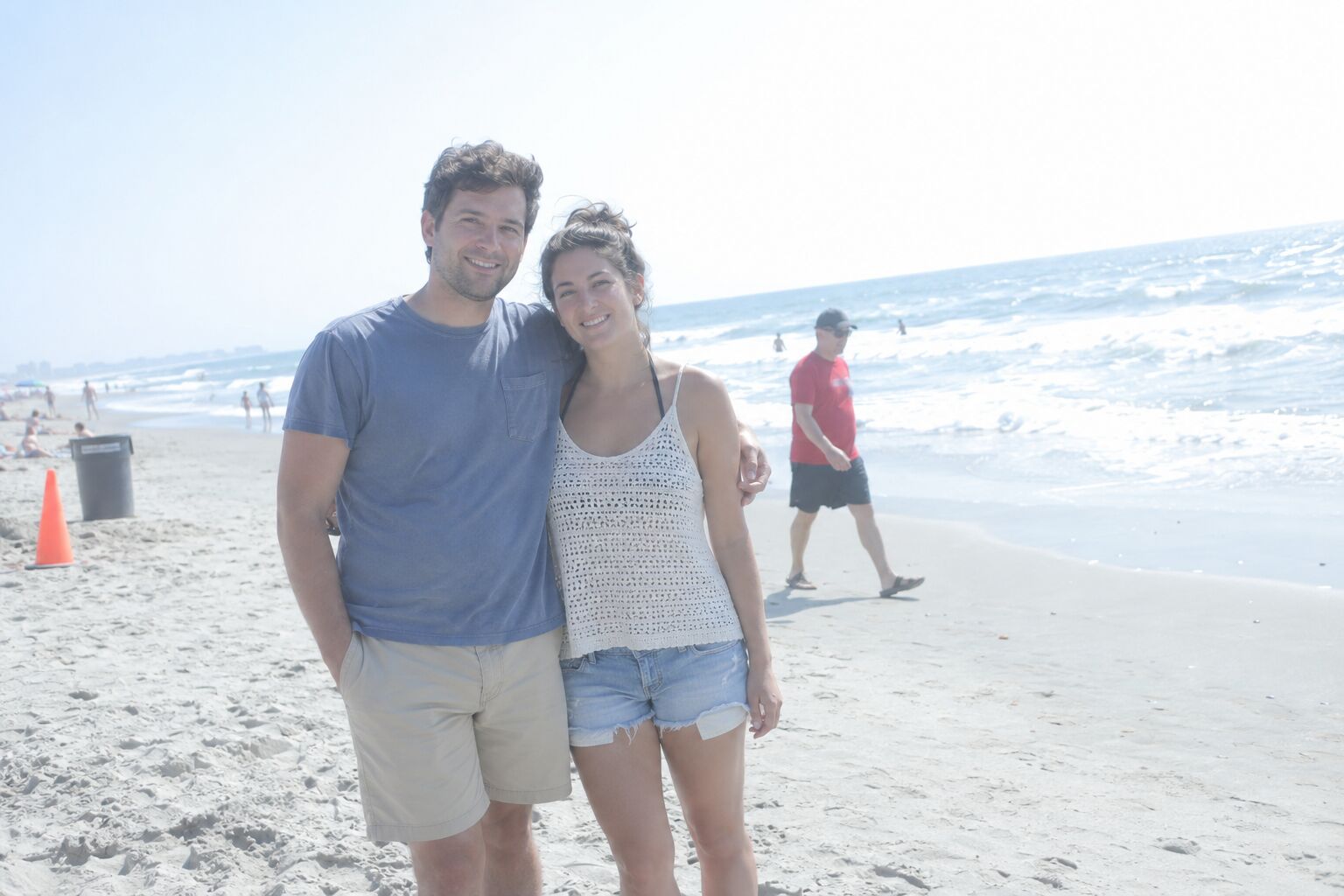
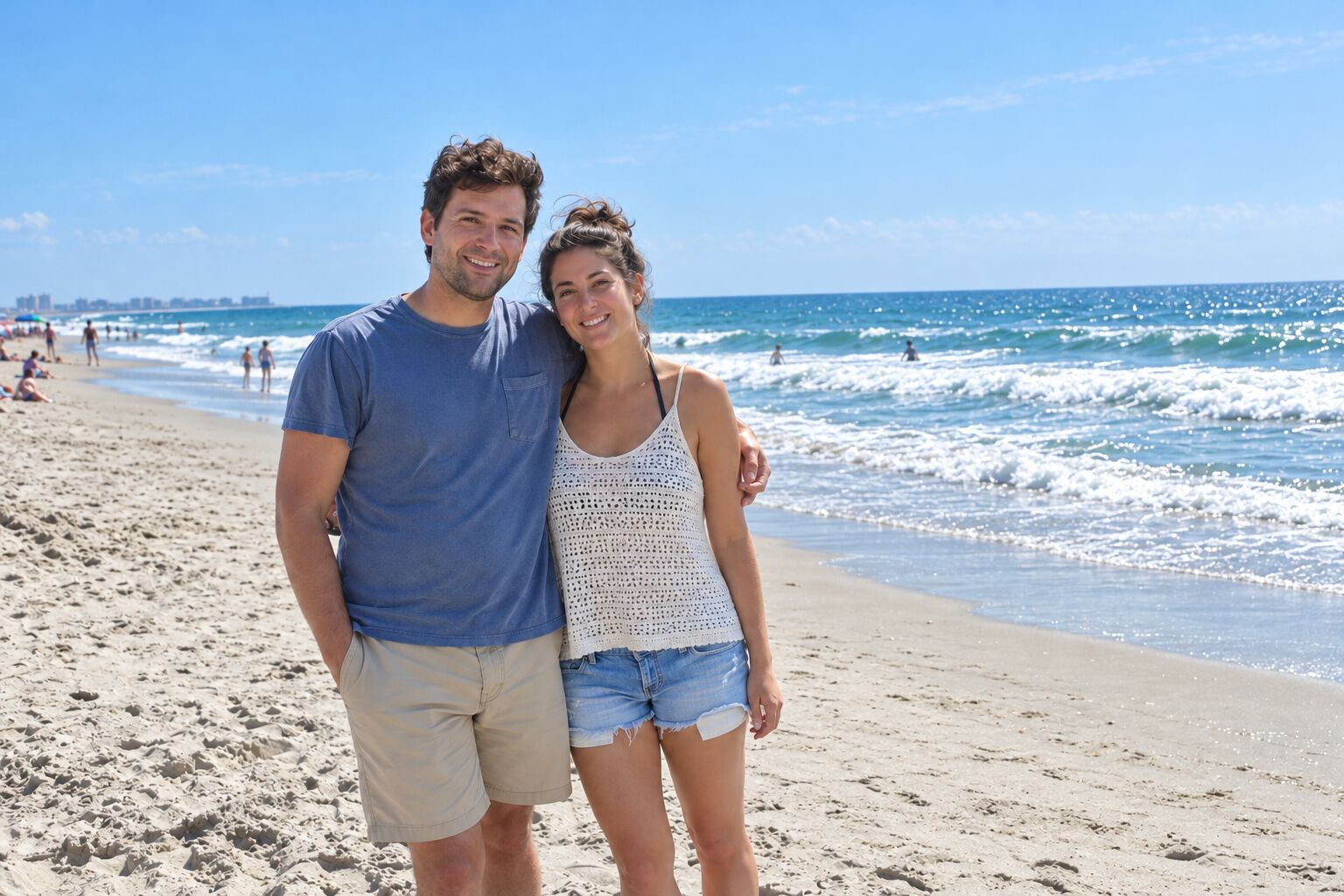
Your original is always kept. A repair is applied the way an edit in the Photos app is, so you can undo any repair with Edit > Revert in Photos.
Prefer copies? Set “Save repairs as” to Copies in Settings. Each repair then goes to a Repaired album as a new photo, with nothing to approve, fully hands-off.
Before a repair is delivered, Picture.Repair compares it with your original: same people, same faces, same place. If it doesn't match, it tries once more. If it still doesn't match, your photo stays as it was and the credit comes back.
It knows what to leave alone.
Not every photo is a picture. Screenshots, receipts, documents, saved images and near-duplicate shots are skipped, and skipped photos cost nothing.
On your iPhone
Checked before anything is uploaded. These photos never leave your phone.
- Screenshots
- Small saved images
- Burst shots and near-duplicates, keeping the first
- Receipts and documents, on iOS 18 and later
- Its own repaired copies
Before any edit
Checked on our server. If a photo is skipped here, it costs nothing.
- Saved images and photos of screens
- Documents the phone didn't catch
- Photos that already look right
- Anything your rules say to leave alone
Your rules, in your words.
Write what Picture.Repair should always repair and never repair, the way you would say it. Rules decide which new photos get repaired. They never change how a photo is edited. If a photo matches both, Always repair wins, and a photo you pick by hand is always repaired.
A month of photos, repaired.
Your first 5 photos are free. After that, auto-repair keeps up with everything you shoot, so Picture.Repair comes as a monthly plan. One credit repairs one photo.
Top-ups
One-time credits that never expire. With a plan or without one.
- 15 photos $6.99
- 50 photos $19.99
- 150 photos $49.99
- 5 free photos to start.
- Plan credits refill monthly. They are used first and don't roll over.
- Top-ups never expire. They are used after your plan credits.
- Skipped, failed or refused photos cost nothing. You only pay for photos you get back.
- Cancel anytime in your Apple Account settings.
- Nothing stops silently. You get a notification when you run low, and waiting photos are repaired once you have credits.
Asked often.
Do I need to keep the app open?
No. How Picture.Repair gets new photos depends on your iOS version.
On iOS 27 and later, Photos hands new photos to Picture.Repair in the background, so repairing is fully automatic. iOS chooses the moment, usually when you have a network connection and enough battery.
On iOS 17 to 26, new photos are picked up when the app runs: when you open it, and when iOS gives it time in the background. To repair photos hands-free without opening the app, add a personal automation in the Shortcuts app: "When iPhone starts charging", run the "Repair new photos" action.
Repairs saved as edits need one tap to apply, because iOS asks before an app edits your photos. If you save repairs as copies instead, nothing needs approving and it is fully hands-off.
How soon are photos repaired?
Auto-repair and hand-picked photos start processing as soon as they arrive. There is no intentional batching wait.
A repair often takes about a minute, but larger queues, retries and service availability can take longer. iOS controls when background photos are uploaded; opening the app helps it pick up new photos. Both modes use one credit per successful repair.
Which photos does it skip?
In auto mode, Picture.Repair skips screenshots, receipts, documents, saved images, photos of screens, near-duplicate shots, and photos that already look professionally shot. It also skips anything your Never repair rule describes.
Screenshots, small saved images, burst shots and its own copies are recognized on your iPhone and are never uploaded. On iOS 18 and later, most receipts and documents are too. Skipped photos cost nothing. Photos you pick by hand are never skipped.
Can I tell it what to repair?
Yes. In Settings, write what to always repair and what to never repair, in your own words: "always repair photos with my kids", "never repair car parts I photograph to sell". Each rule can be up to 500 characters.
Rules choose which new photos get repaired. They are never used as editing instructions. If a photo matches both, Always repair wins.
Does it change my originals?
Picture.Repair edits the photo the way the Photos app does, and Photos always keeps the original. To undo a repair, open the photo in Photos, tap Edit, then Revert, or use Undo repair in the app. Revert restores the original exactly. With iCloud Photos, the edit and the Revert apply on all your devices.
If you'd rather keep repairs separate, set “Save repairs as” to Copies in Settings. Each repair is then saved as a new photo in a Repaired album, dated and placed like the original.
What about Live Photos?
An edited Live Photo becomes a still. Revert brings back the Live Photo. To keep the Live Photo and have a repaired still too, save repairs as copies.
What happens to my photos?
Photos that Picture.Repair repairs are sent to its server. Our processors see them in order to repair them: OpenAI for planning, editing and the fidelity check, and Cloudflare for hosting and triage. We use their API services, which do not train on API data by default.
New photos from auto-repair are held on our servers until they are processed, at most about 24 hours, and deleted as soon as the job finishes. Photos you repair by hand are processed right away and not stored. Repaired results are deleted after 7 days. Photos skipped on your iPhone are never uploaded. The privacy policy has the details.
Does Picture.Repair change faces?
No. Faces, expressions, skin, hair and bodies are not edited. Every repair is checked against the original for exactly this, and a repair that fails the check is not delivered.
What if I don't like a repair?
Undo it. In Photos, tap Edit, then Revert, or use Undo repair in the app, and your original comes back exactly. If you save repairs as copies, delete the copy. If a repair fails our own check, you never see it, and the credit is refunded.
What happens if I run out of credits?
New photos wait. You get a notification when you are down to 3 credits, and another when a photo is waiting and you are out. Add a top-up, start a plan, or wait for your plan to refill, and the waiting photos are repaired. Nothing stops without telling you.
Will it remove people from my photos?
Only strangers in the background who are clearly not part of the moment, like someone walking past behind you. When it is unclear, the person stays.
I used Kamera or Candid. What happens to my credits?
Picture.Repair is the new name for Candid, which replaced Kamera. Your account and credits carry over. If you bought Kamera before Candid's release, your remaining credits are converted once, at 2 Kamera credits to 1 credit, up to 50. Converted credits never expire.
Keep taking the picture.
Requires iPhone and iOS 17 or later. Fully automatic background repair needs iOS 27 or later.